
Please note that The Monroe Institute's Online Store (where you can access purchased programs and downloads) and the Expand App are two separate systems.
Clarifying Note
- Online Store: Access your purchased programs and downloads by logging into https://my.monroeinstitute.org from any internet-connected browser on any device.
- Expand App: This is a separate, subscription-based app for mobile devices that offers access to a variety of content beyond your purchased programs. It operates independently from the Online Store.
How to Access Your Purchased Programs
To access your purchased programs:
1. Log In
- Visit https://my.monroeinstitute.org and log in using the registered email address and password you used during checkout.
2. Find Your Programs
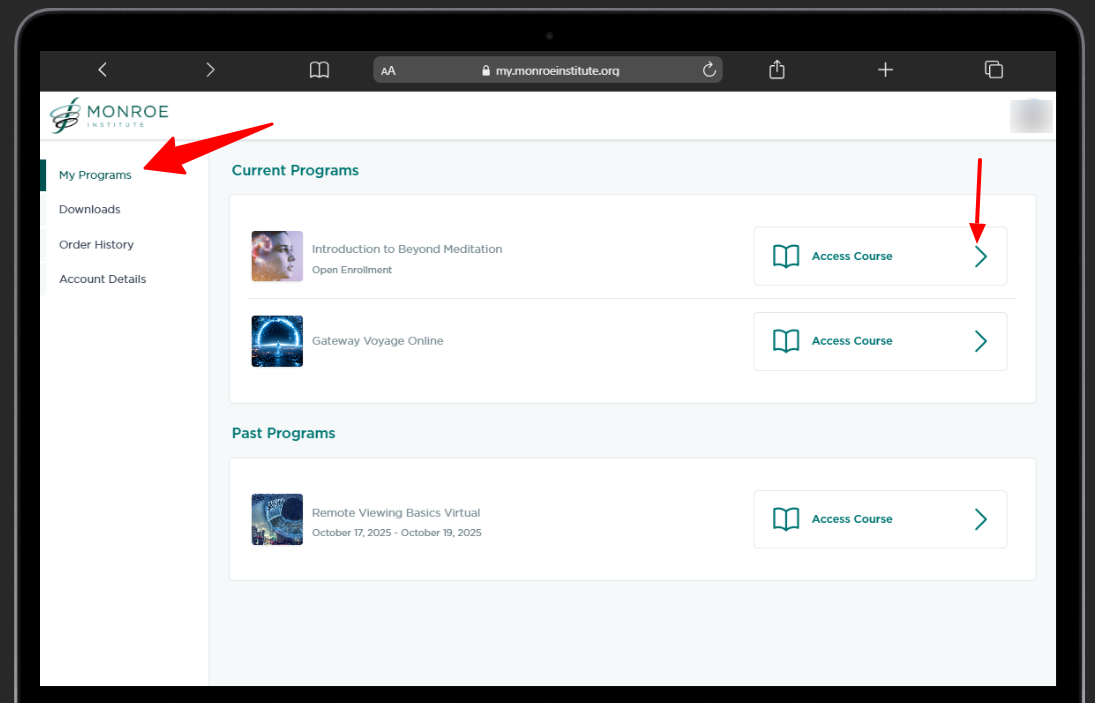
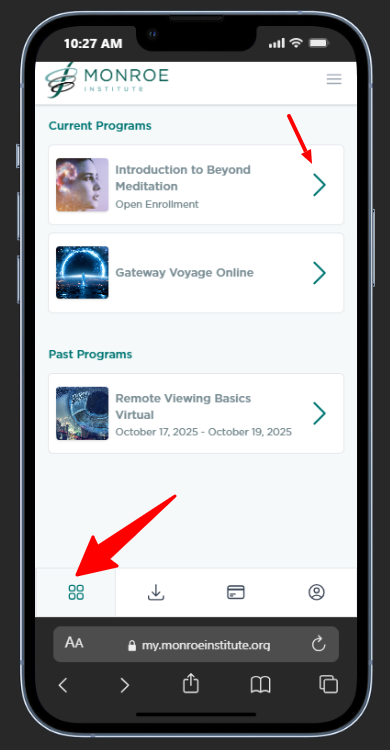
- After logging in, look for the My Programs tab.
- This tab will show all your available online programs, including both current and past programs you’ve purchased.
If you are using PC/Mac or a large screen device, the Programs tab can be located on the left hand-side of the page.
If you are in a mobile or small screen device, the Programs area will be found in a form of an icon at the bottom of the page.
Troubleshooting Note:
If any of the audio meditations stop, please click on the Switch to basic player if audio issues occur link below the player, that should fix it.
Bear in mind that most browsers have a playback time limitations which is something that you may need to check on the browsers settings.
We do not provide browser support and instructions; but as courtesy, here are some instructions we found for you on Playback Setting in Chrome.
https://support.google.com/chrome/answer/9692215?hl=en
You will have to search something like "Video and Audio Playback Settings" for the browser of your choice.
If you have any questions or need further assistance, feel free to submit a support ticket by clicking the "SUBMIT A TICKET" button on the top menu, and we’ll be happy to help!